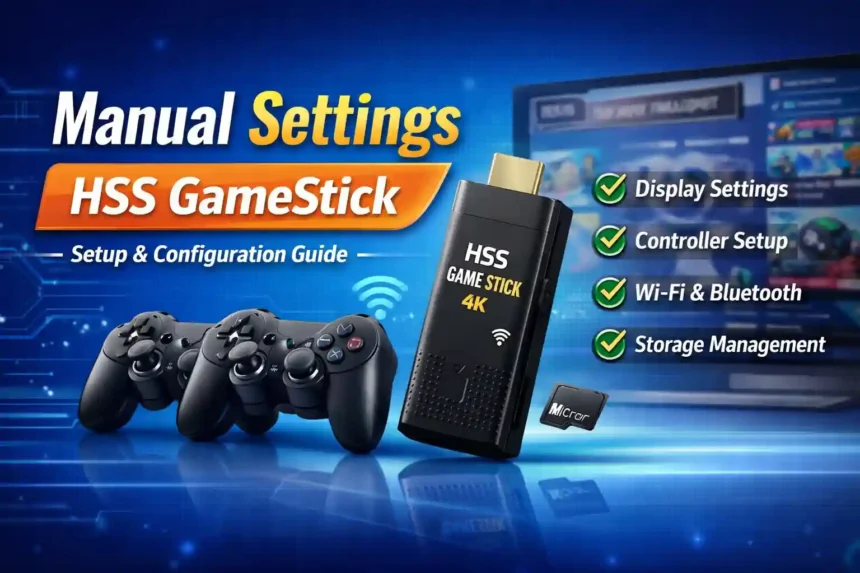
The HSS GameStick is a compact plug-and-play gaming console that allows users to enjoy thousands of retro and modern games on their TV. It’s an affordable alternative for gamers who want a console-like experience without spending much. However, many users face issues when it comes to manual settings HSS GameStick — including game controls, resolution, and Wi-Fi configuration. This article explains everything you need to know about manual settings for HSS GameStick, step by step.
What is HSS GameStick?
A portable gaming device inspired by the original Nintendo 8-Bit System, HSS GameStick.connects to your television using an HDMI cable. Typically connected via wireless control four-player setup with preloaded classic games stored onboard the USB-powered device running either Android or LINUX Operating systems depending upon the specific model purchased .
Why Manual Settings Are Important
Through manual settings, you will be able to configure game play, display quality and control preferences to suit your needs. It allows you to set up game play by changing the screen resolution, connecting to wi-fi, or adjusting the sensitivity of the controller. The HSS GameStick’s manual settings menu will enable users to obtain an optimal gaming experience.
How to Access Manual Settings on HSS GameStick
Follow these steps to access the manual settings on your HSS GameStick:
- Turn on your HSS GameStick and connect it to your TV via HDMI.
- Navigate to the main menu using your controller.
- Select “Settings” or “System Settings” (depending on your version).
- Inside the menu, you will find several sub-options:
- Display Settings
- Game Controls
- Network Settings
- Audio Settings
- Storage Management
Display Settings
In the Display Settings, you can:
- Change Screen Resolution (720p / 1080p / 4K depending on your TV).
- Adjust Aspect Ratio to fit widescreen or standard display.
- Modify Brightness, Contrast, and Color Mode for a better view.
Tip: Always match the resolution to your TV’s native resolution for the best visual output.
Controller Settings
The HSS GameStick allows manual controller setup for better gameplay.
You can:
- Pair new wireless controllers via Bluetooth.
- Re-map buttons according to your gaming preference.
- Adjust sensitivity levels for analog sticks.
How to remap buttons:
- Go to Controller Settings.
- Select Key Mapping.
- Press the desired button and assign a new function.
- Save the configuration.
Network Settings (Wi-Fi & Bluetooth)
Connecting to Wi-Fi is important for updates or online features.
To connect manually:
- Go to Network Settings → Wi-Fi.
- Turn Wi-Fi ON.
- Choose your network and enter the password.
- Wait for a successful connection confirmation.
You can also connect Bluetooth controllers or headsets from the same menu.
Audio Settings
In the Audio Settings, you can:
- Adjust Volume Output.
- Change Sound Mode (Stereo / Surround).
- Test sound levels for better in-game effects.
Storage and Game Management
You can manage your storage through:
- Internal Storage: Check available space.
- External Storage: Format SD card or USB drive.
- Game Management: Add or delete games manually.
Tip: Always back up your saved game files before deleting or formatting storage.
Common Troubleshooting Tips
If your HSS GameStick isn’t functioning properly after adjusting manual settings, try these solutions:
- Reset to Default Settings: Go to “System Reset.”
- Controller Not Responding: Re-pair via Bluetooth.
- No Display: Check HDMI port and resolution settings.
- Lagging Games: Lower display resolution for smoother performance.
Final Words
HSS GameStick provides users with manual options to set up and treat their system like an entertainment unit in order to create an optimal environment for gaming in order to provide the best possible gaming experience. Through understanding and configuring display, audio and controls you can also make sure that games will run smoothly with all your favourite games.
FAQ’s
How do I open settings on HSS GameStick?
Go to the main menu and select “Settings” using your controller.
Can I connect a Bluetooth controller to HSS GameStick?
Yes, you can connect it via the Bluetooth option under Network Settings.
What resolution does the HSS GameStick support?
It supports up to 1080p or 4K, depending on your model.
How to reset HSS GameStick manually?
Go to System Settings → Reset → Confirm Reset to restore factory defaults.
Can I install new games manually?
Yes, if the device supports external storage or USB, you can add ROM files.
Why is my HSS GameStick not showing on TV?
Check the HDMI connection and ensure the correct input source is selected.
How to fix controller lag on HSS GameStick?
Ensure low battery isn’t the issue, reduce interference, or reconnect via Bluetooth.
Also Read More : Minecraft PlayBattleSquare